Want Ajelix Agent to create pages in your Notion workspace? Update databases automatically? Or manage your content programmatically?
This setup is required to unlock Ajelix agent’s full capabilities with Notion. Without it, the AI can only view or discuss content you paste into chat. With these credentials configured, Ajelix Agent gains the ability to:
– Create and update Notion pages and databases directly
– Query and search content within your workspace
– Append blocks to existing pages (text, headings, lists, etc.)
– Automate workflows across your Notion workspace
If you want to experience true agentic Notion interactions, where AI doesn’t just suggest but actually does the work inside your workspace, complete this setup once, and you’re ready to go.
Supported Operations: This guide covers connecting Ajelix AI to your Notion workspace via API. You’ll need a Notion account and access to create integrations.
1. Go to Notion Integrations
1. Log in to your Notion account at notion.so
2. Navigate to notion.so/my-integrations or go to Settings → My connections → Develop or manage your own integrations
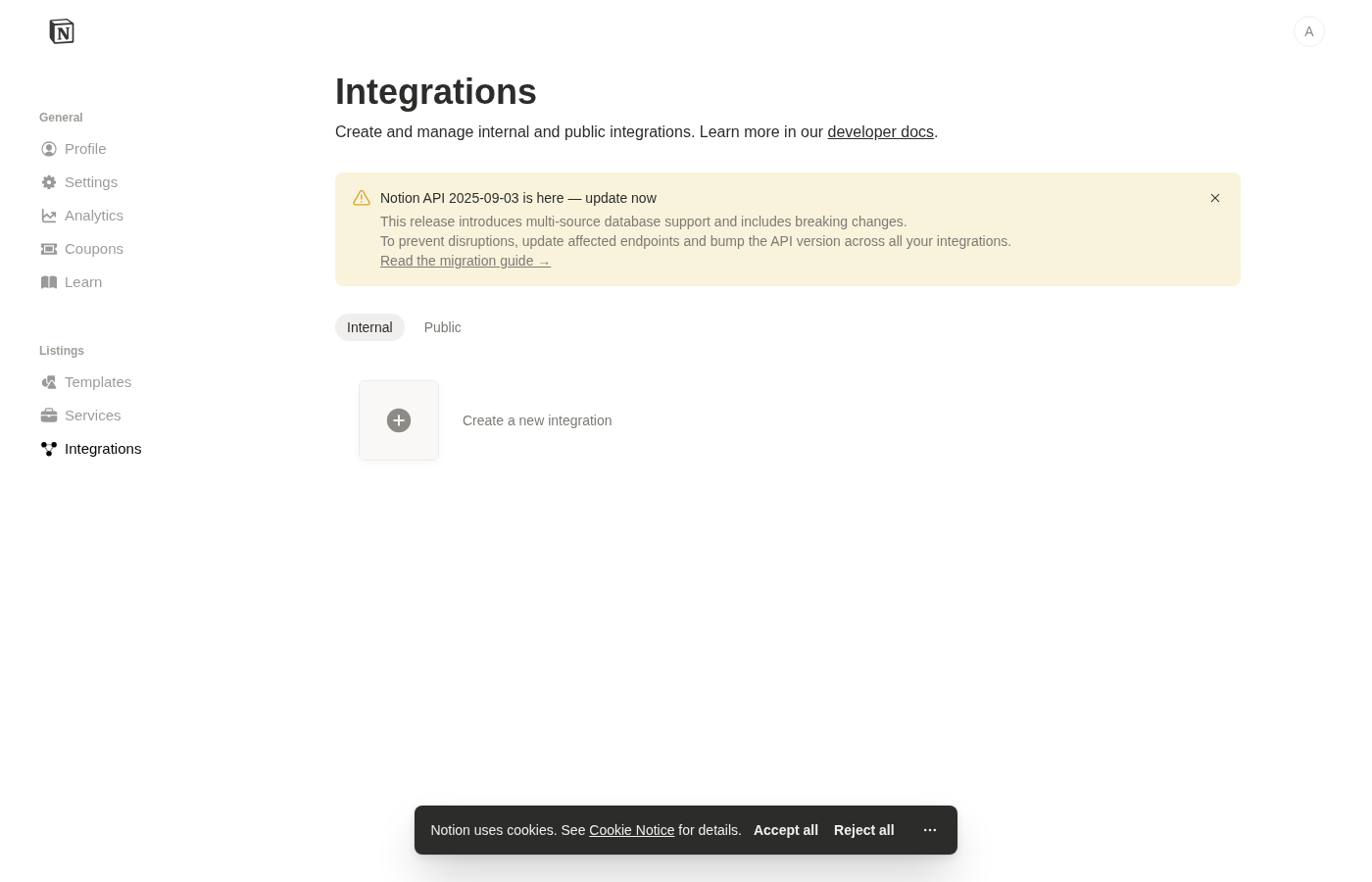
3. You’ll see the My Integrations page:
2. Create a New Integration
1. Click on “+ New integration” or “Create a new integration”
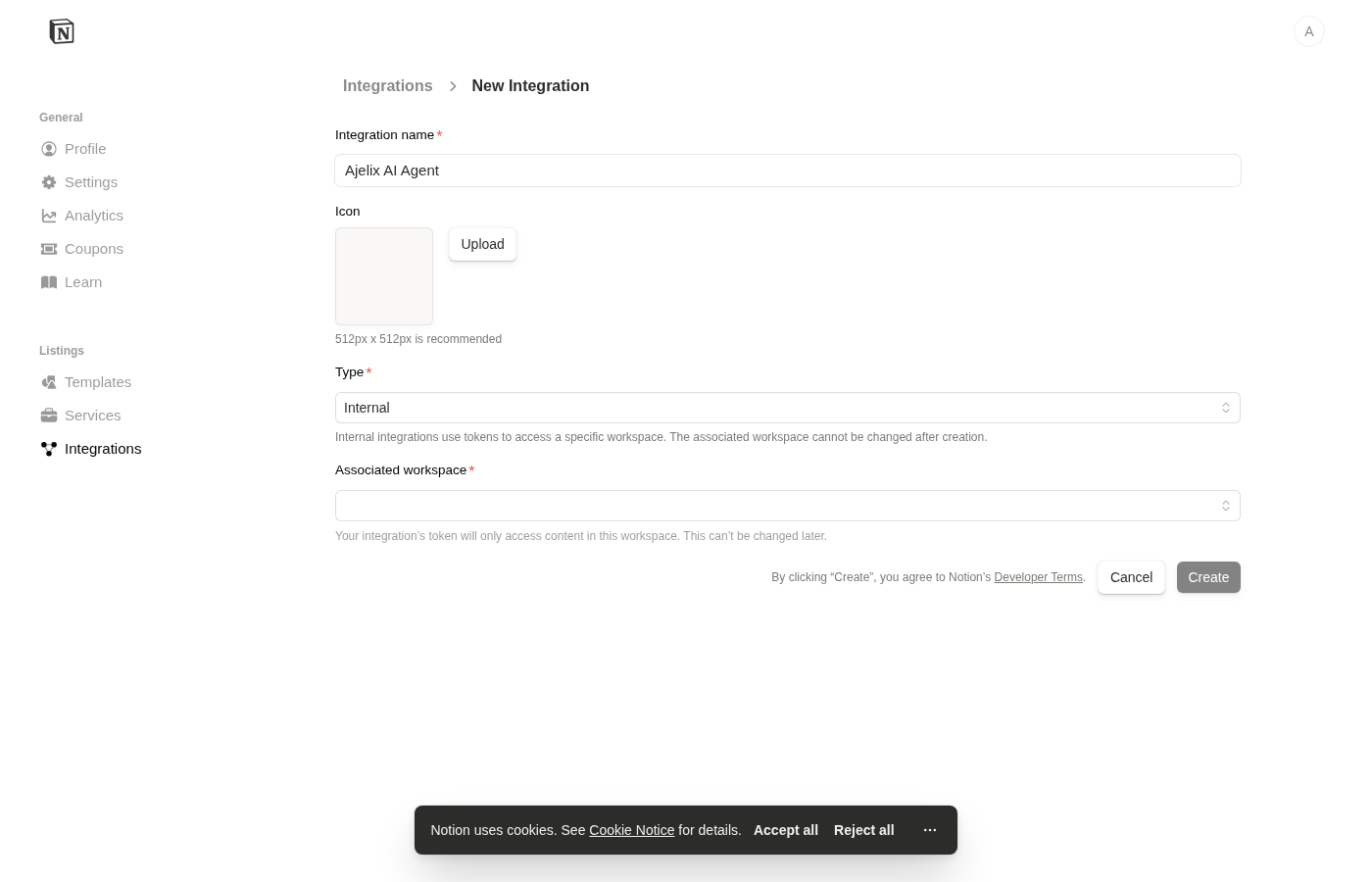
2. You’ll see the integration creation form:
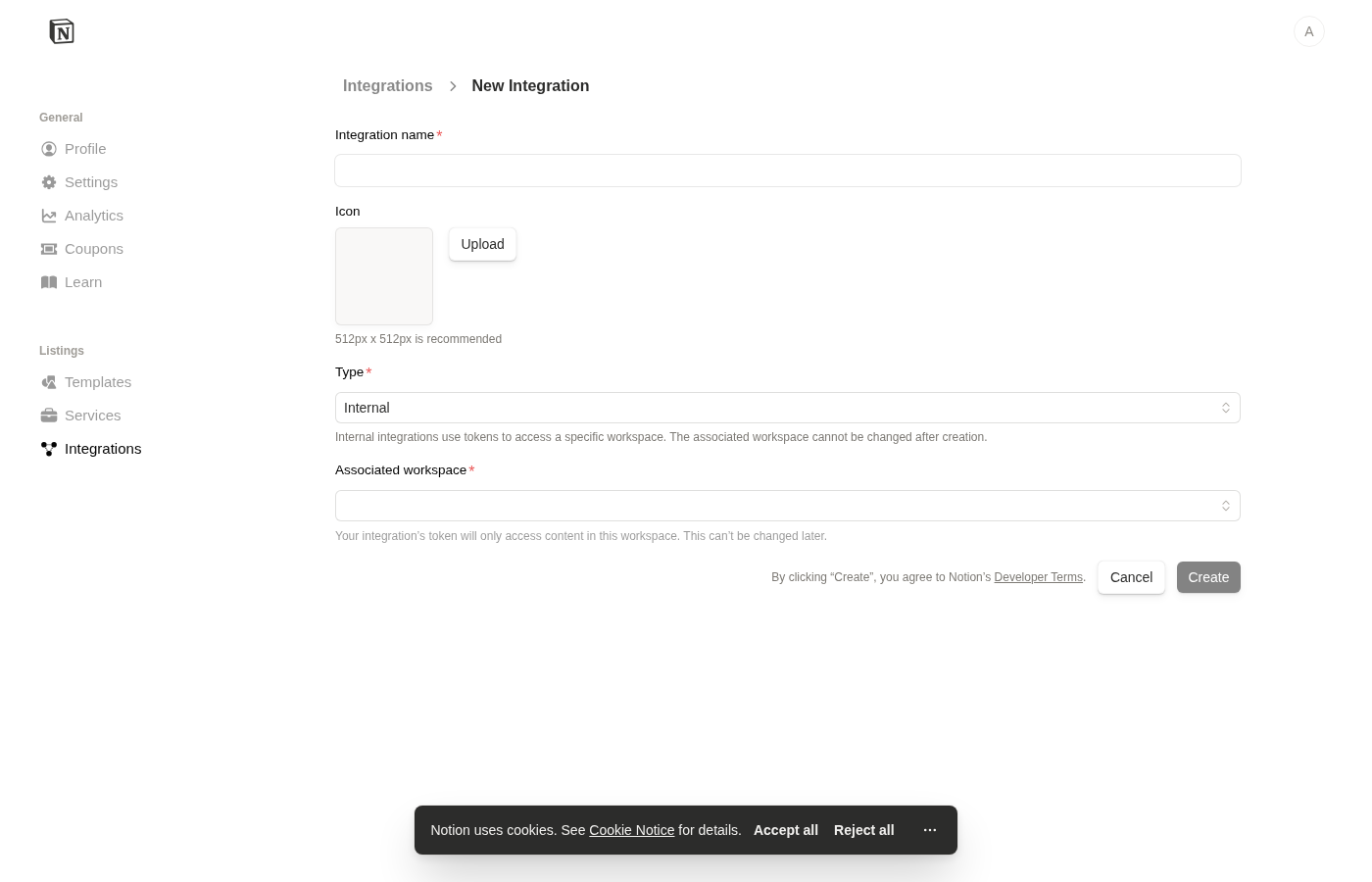
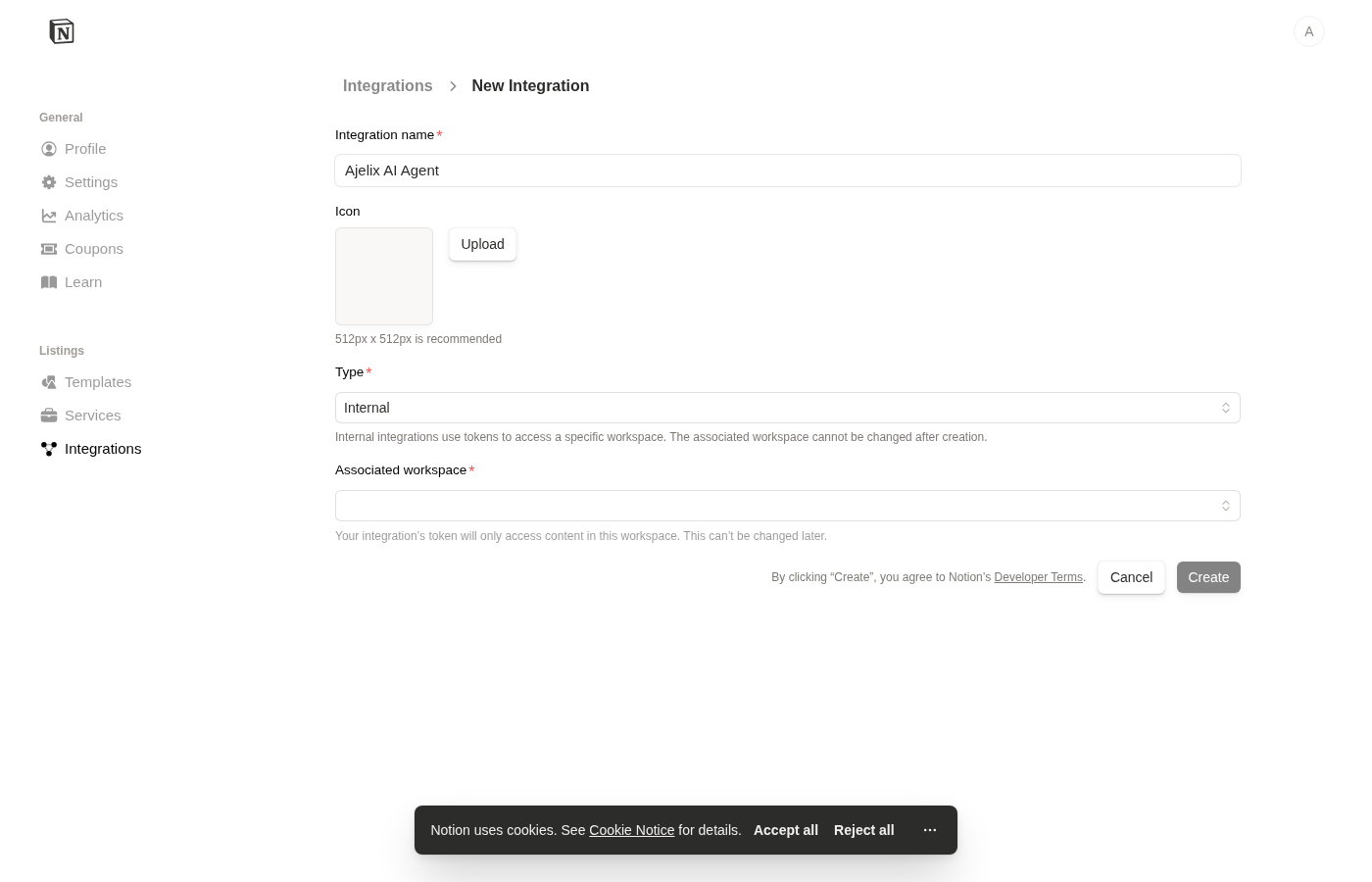
3. Enter a name for your integration (e.g., “Ajelix AI Agent”)
4. Select the workspace where you want to use the integration
5. Click “Submit”
3. Get Your API Secret Key
After creating the integration, you’ll see the integration details page with your Internal Integration Secret (API key):
1. Copy the Internal Integration Secret (it looks like secret_xxxxxxxxxx)
2. Store it securely – you’ll need to provide this to Ajelix
Important: This secret key is only shown once. Make sure to copy it immediately!
4. Connect Pages to Your Integration
Now you need to share specific Notion pages with your integration. This is required for Ajelix to access those pages.
1. Open a Notion page you want to use with Ajelix
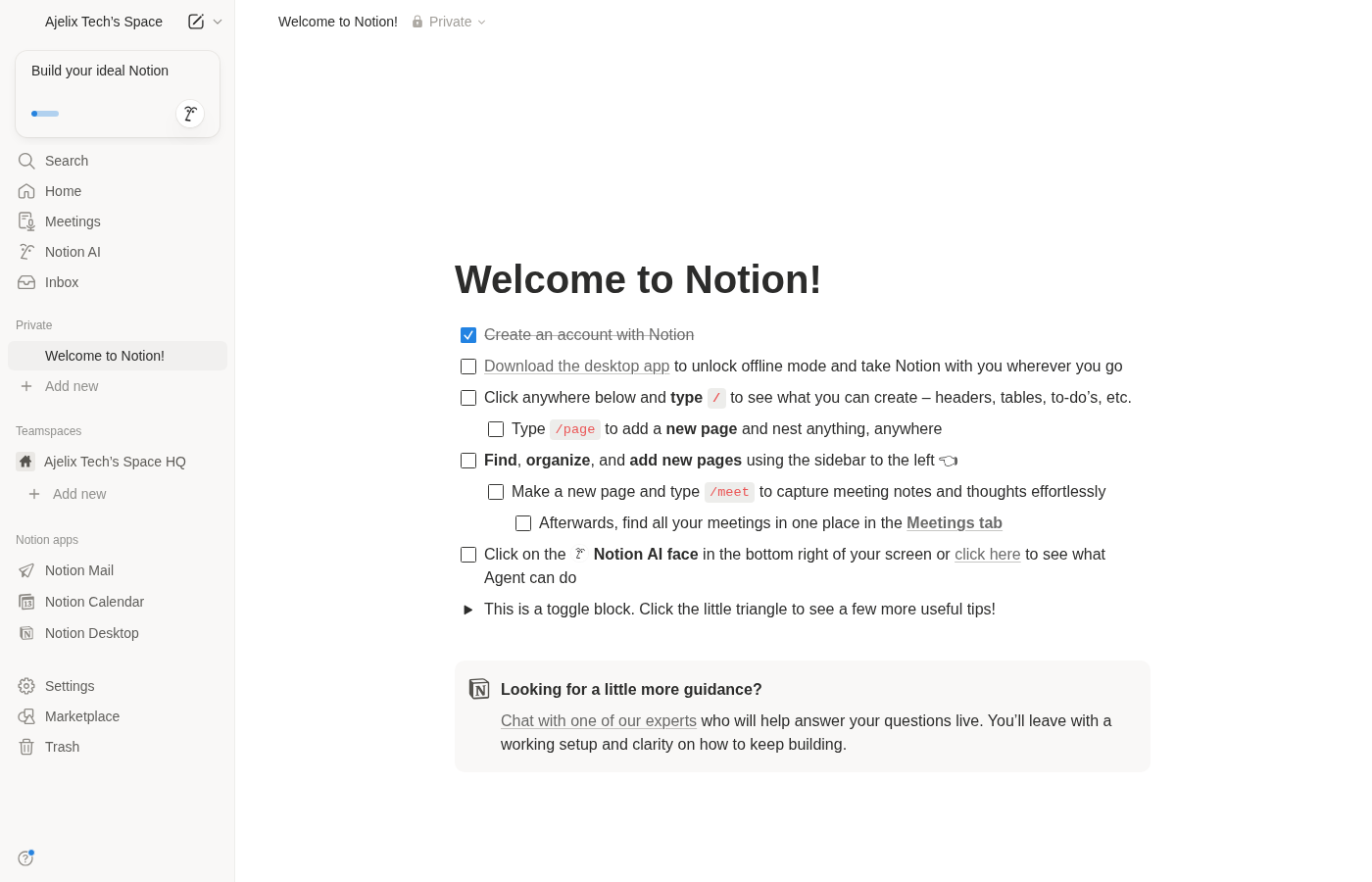
2. Click the “…” (more options) button in the top right corner
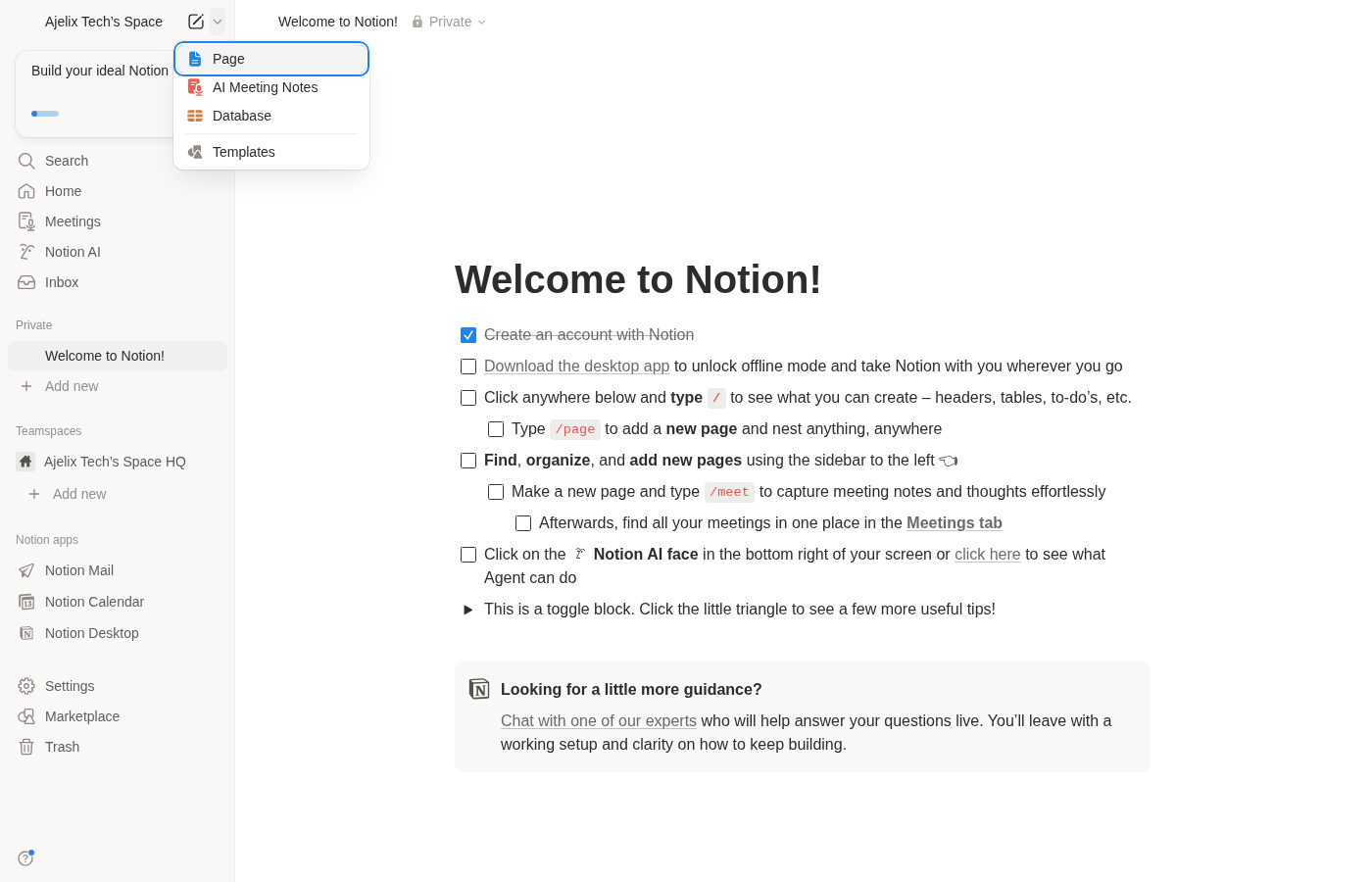
3. Scroll down to “Connections” or “Add connections”
4. Click on your integration (“Ajelix AI Agent”) to connect it
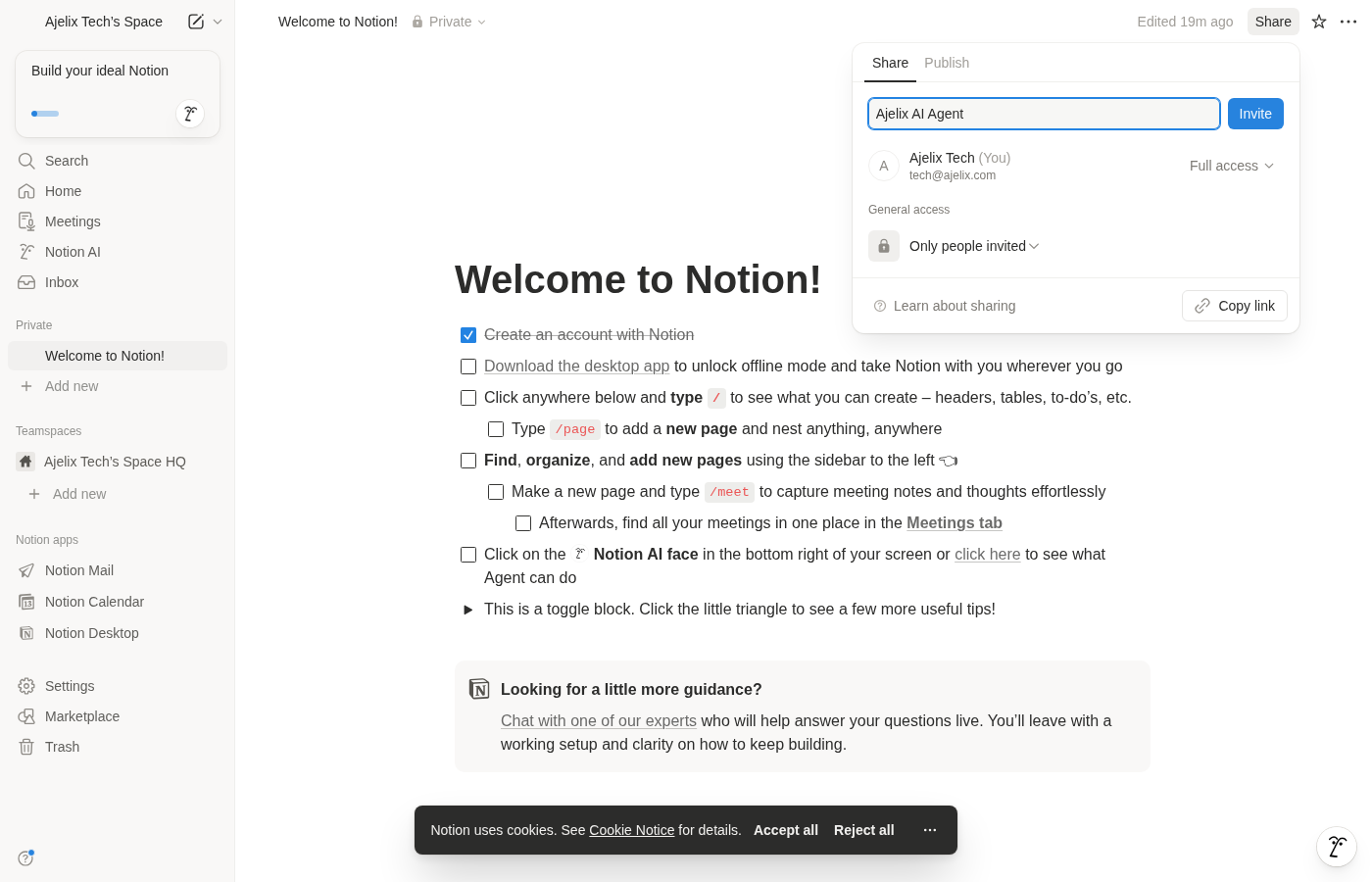
Alternatively, you can use the Share button:
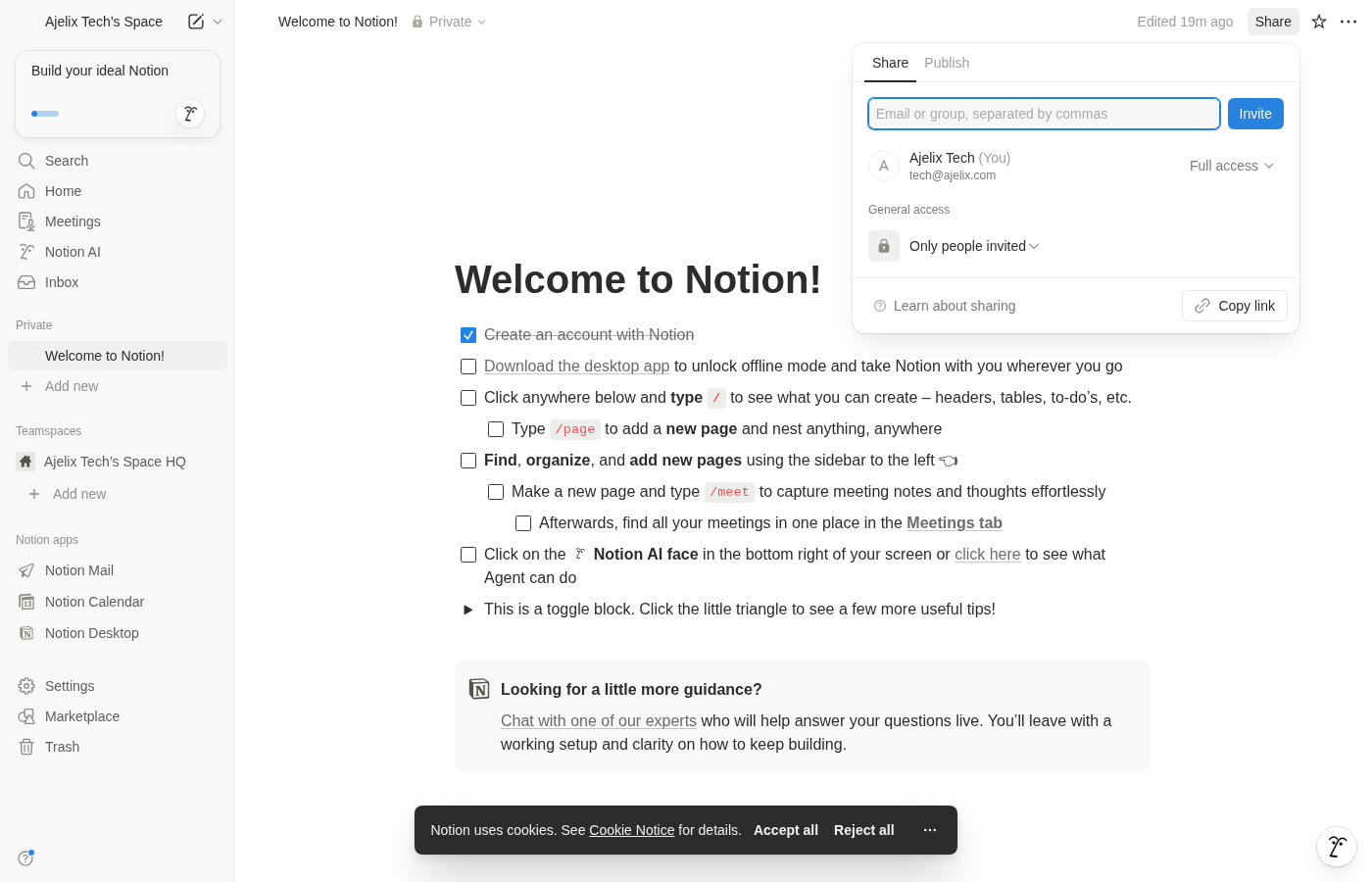
1. Click “Share” button
2. In the invite field, type your integration name
3. Select your integration when it appears
5. Use the Integration in Ajelix
Once you’ve set up the integration and connected pages:
1. In Ajelix chat, mention your API secret key (or upload it as a text file)
2. Provide the page ID or database ID of the connected Notion resource
3. Enable the Notion AI skill
4. Switch to Agent mode
5. Select a powerful LLM model and send your request
Example prompts:
– “Create a new page in my Notion workspace with the title ‘Meeting Notes’”
– “Add a checklist item to this page: [page URL]”
– “Query all items in my database where Status is ‘In Progress’”
How to Find Page ID
You can find a Notion page ID from its URL:
https://www.notion.so/your-workspace/Page-Title-1234567890abcdef1234567890abcdef
                                              ^^^^^^^^^^^^^^^^^^^^^^^^^^^^^^^^
                                              This is the page ID (32 characters)
Remove the hyphens if present: 1234567890abcdef1234567890abcdef
Security Best Practices
– Never share your API secret publicly
– Only connect pages that Ajelix needs to access
– You can revoke integration access at any time from Notion Settings → My connections
– Use descriptive names for your integrations to track where they’re used
We’re actively working on Ajelix documentation to help you get the most from AI. Found a gap, have feedback, or want to suggest a new guide? We’d love to hear from you at support@ajelix.com